Introduction
Blooket Play makes learning more interactive by turning educational questions into entertaining games. Students can compete with classmates, practice subjects independently, or complete assignments shared by their teachers. Whether you’re joining your first game or looking for a new way to study, getting started is simple.
To join a live game, visit play.blooket.com, enter the Game ID provided by your teacher, and choose a nickname. You can also play independently through the main Blooket website or complete homework using a shared link.
This guide explains how Blooket works, how to join and host games, which game modes to try, and what to do when something goes wrong.
What Is Blooket Play?
Blooket Play refers to the gaming experience offered by Blooket. Blooket is an online educational platform that combines question-based learning with different game formats. Teachers can create quizzes, select existing question sets, and organize games for their students.
Instead of answering questions on a traditional worksheet, students participate in activities that may involve collecting points, building defenses, running virtual businesses, or competing against other players.
Blooket offers three main ways to participate:
-
Live games: Join a teacher-hosted session and compete with other players.
-
Solo games: Practice questions independently using a compatible game mode.
-
Homework games: Complete assignments shared by a teacher at your own pace.
The platform covers subjects such as mathematics, science, English, history, and geography. The educational content depends on the question set selected by the teacher or player.
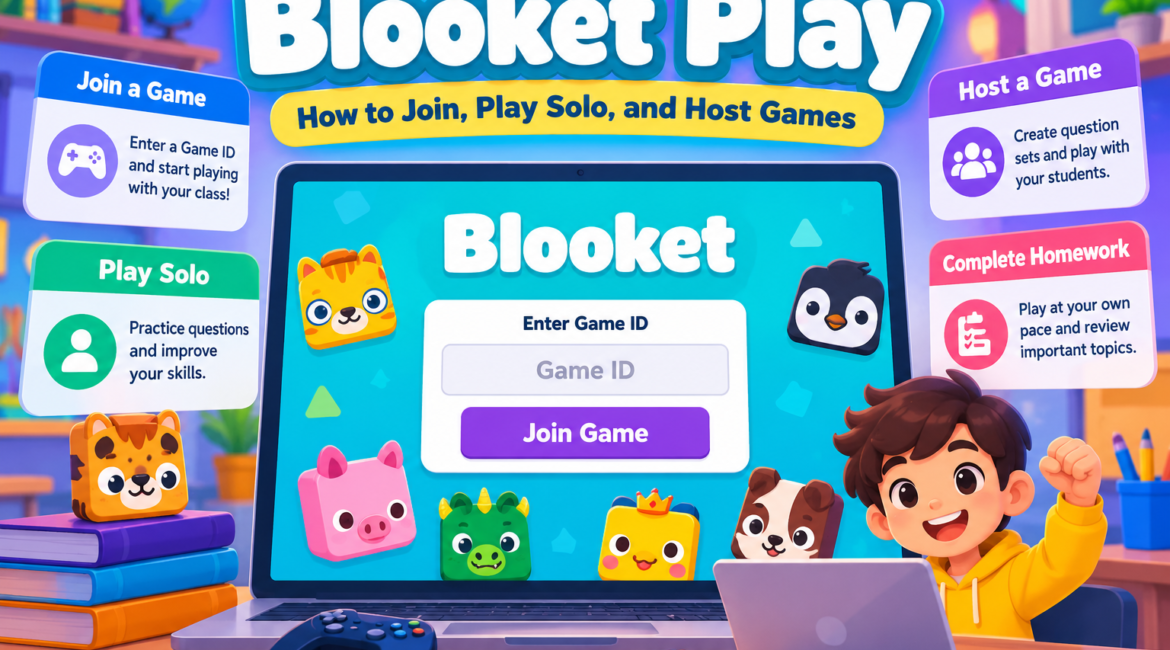
How to Play Blooket Right Now

Join a live game
Enter a Game ID to participate in a hosted session.
No student account required
Open Blooket Play

Play solo
Choose a question set and practice independently.
Use a Blooket account
Open Blooket

Complete homework
Open the assignment link or scan the QR code provided by your teacher.
No account required for guest participation
These options are described in Blooket’s official student guide.
How to Join a Blooket Game Using a Code
Joining a live Blooket game takes only a few steps. You need a device with internet access and a valid Game ID from the person hosting the session.
Step 1: Open the Official Blooket Play Website
Open a browser on your computer, tablet, Chromebook, or smartphone. Visit play.blooket.com to access the game joining page.
Make sure you’re using the official website rather than an unfamiliar third-party page.
Step 2: Enter Your Blooket Game ID
Find the Game ID shared by your teacher or host. Type it into the joining field and follow the on-screen instructions.
Check the code carefully. An incorrect digit can prevent you from joining the intended session.
Step 3: Choose Your Nickname
After entering a valid code, Blooket asks you to identify yourself with a nickname. Depending on the host’s settings, you may be able to enter your own name or receive a randomly generated one.
If you’re participating in a classroom activity, use a name your teacher can recognize.
Step 4: Select Your Blook
A Blook is the character or avatar representing you during a game. Choose from the available characters before the session begins.
Different Blooks provide a way to personalize your gaming experience.
Step 5: Wait for the Host to Start
Once you’ve joined, you’ll enter the game lobby. The host controls when the live session starts.
When the game begins, read the questions, select your answers, and follow the rules of the selected game mode.
You can also join through a direct invitation link or QR code instead of manually entering a Game ID.
Can You Play Blooket Without an Account?
Yes. Students can join live Blooket games without creating an account. A valid Game ID, invitation link, or QR code is enough to participate as a guest.
However, creating an account provides additional features, including access to independent games, personal statistics, and collectible Blooks.
| Feature | Guest Player | Registered Player |
|---|---|---|
| Join live games | Yes | Yes |
| Use a Game ID | Yes | Yes |
| Complete shared homework | Yes | Yes |
| Play independently | Not through a guest live-game session | Yes |
| Collect Blooks in an account | No | Yes |
| Track personal statistics | No | Yes |
Blooket’s official guidance states that users must be older than 13 in the United States, or at least 16 outside the United States, to create their own accounts. Younger students can still participate in live games without registering.
How to Play Blooket Solo Without a Host
Blooket solo mode allows students to practice educational questions without joining a classroom session. It can be useful for revision, independent learning, and reviewing difficult topics.
Unlike a live game, solo play doesn’t require another person to start the session.
Steps to Start a Solo Blooket Game
-
Visit the official Blooket website at
blooket.com. -
Sign in to your account.
-
Open the Discover section.
-
Search for a subject or question set.
-
Select a question set that matches your learning goal.
-
Click Solo.
-
Choose an available solo game mode.
-
Select Play to begin.
For example, a student preparing for a mathematics test could search for multiplication questions and select a compatible solo game.
Solo play lets students focus on the material without waiting for classmates. They can return to difficult topics and practice again when needed.
Not every Blooket game mode supports solo play, so the available options depend on the selected mode.
How to Host a Blooket Game as a Teacher
Teachers can use Blooket to organize classroom reviews, practice sessions, and informal knowledge checks.
Hosting a game involves selecting educational content, choosing a game mode, and inviting students to participate.
Step 1: Sign In to Blooket
Visit the main Blooket website and sign in to your teacher account.
Step 2: Choose a Question Set
You can select a question set you’ve created or browse existing sets through the Discover section.
Search for content based on your subject, grade level, or lesson topic.
Step 3: Select a Game Mode
Choose a mode that supports live hosting. Consider the number of students, the difficulty of the questions, and the time available for the activity.
Step 4: Configure the Game
Adjust the available settings, such as game duration or objectives, according to the selected mode.
Step 5: Start Hosting and Share the Code
Start the hosting session and share the generated Game ID, join link, or QR code with students.
Step 6: Begin the Game
Once students have entered the lobby, start the session. Players can then answer questions and participate according to the rules of the chosen game mode.
For beginners, Classic is a straightforward option because it focuses on answering questions and earning points.
Popular Blooket Game Modes Explained
One of Blooket’s main attractions is its variety of game modes. Different modes combine educational questions with different challenges, so the same question set can feel different depending on how it’s played.

Classic
Players answer questions to earn points and compete on a leaderboard. Its simple rules make it suitable for first-time players and short classroom reviews.

Gold Quest
Players answer questions, open treasure chests, and collect gold. Surprise rewards and opportunities to take gold from opponents add unpredictability.

Tower Defense 2
Players answer questions and use strategy to build and upgrade defenses against waves of enemies. It’s a good option for students who enjoy planning.

Café
Players serve customers, restock supplies by answering questions, and improve their virtual café. It combines revision with time management.

Fishing Frenzy
Correct answers help players catch fish and discover surprises. This mode combines quick questions with elements of luck.
Other available modes include Factory, Racing, Battle Royale, Crypto Hack, Monster Brawl, and various seasonal activities. Some modes require Blooket Plus, while others are available to free users.
Which Blooket Game Mode Should You Choose?
The best mode depends on what you want to accomplish. A fast classroom review requires a different experience from a longer independent study session.
| Learning Goal | Suggested Game Mode | Reason |
|---|---|---|
| Quick classroom review | Classic | Simple questions and scoring |
| Competitive group activity | Gold Quest | Interactive rewards and competition |
| Strategy-based practice | Tower Defense 2 | Combines questions with planning |
| Independent revision | Café | Self-paced gameplay |
| Fast classroom competition | Racing | Encourages quick, accurate responses |
| Direct question practice | Study | Focuses on questions without extra gameplay |
Teachers should also consider whether a mode supports live hosting, solo play, or homework assignments.
For younger students or first-time players, a simple mode with clear instructions may work better than one with complicated rules.
How to Complete Blooket Homework
Blooket homework allows students to complete assigned activities outside a live classroom session.
A teacher chooses a question set, configures an assignment, sets a deadline, and shares access with students.
To complete homework:
-
Open the homework link shared by your teacher, or scan the provided QR code.
-
Enter your name when prompted.
-
Select an available game mode if the assignment offers a choice.
-
Answer the questions and work toward the assignment goal.
-
Finish the activity before the deadline.
Students generally don’t need an account to open a shared homework assignment.
Teachers can review assignment results to understand how students performed. Homework availability depends on the deadline and settings chosen by the teacher.
How to Create Your Own Blooket Question Set
Creating a question set allows teachers to match a Blooket activity to a particular lesson. Instead of searching for an existing quiz, they can prepare questions based on the material their students need to practice.
To create a question set, sign in to Blooket and open the Create section. Enter a descriptive title, add a short explanation of the topic, and choose whether the set should be public or private.
Next, add your questions and answer choices. Review each answer carefully before saving the set.
For example, a science teacher could create a question set called “Solar System Review” containing questions about planets, moons, and basic astronomy.
Once the set is ready, it can be used in a compatible live game, solo session, or homework assignment.
Teachers can also browse Blooket’s curriculum collections and discover existing question sets organized by subject and grade level.
Can You Play Blooket on Mobile Phones and Chromebooks?
Blooket is browser-based, so students can access it on many common devices without installing a separate application.
These include:
-
Desktop computers and laptops: Useful for teachers hosting games and managing question sets.
-
Chromebooks: Convenient for classroom participation through a web browser.
-
Android phones: Students can open the joining page and enter a Game ID.
-
iPhones and iPads: Players can access live games and shared assignments through a supported browser.
-
Tablets: Larger screens can make questions and answer choices easier to read.
For a better experience, use an updated browser and a stable internet connection. If the game doesn’t display correctly on a smaller screen, try rotating the device or switching to a larger one.
Blooket Play Not Working? Common Problems and Fixes
Occasionally, players encounter problems when joining games, loading pages, or connecting to a live session.
Most basic issues can be checked without changing your account settings.
Invalid Blooket Game ID
If Blooket doesn’t accept your code, confirm that you entered it correctly.
Ask the host whether the game is still active and whether they’ve shared the latest joining information.
A code from an earlier session may no longer work.
Blooket Page Won’t Load
First, check your internet connection by opening another website.
If your connection works, refresh the Blooket page or try a different browser.
School network restrictions may also prevent certain services from loading.
Unable to Join a Live Game
If the joining page opens but doesn’t connect to the session, try temporarily disabling browser extensions that might interfere with the website.
Blooket’s official troubleshooting guidance identifies some ad blockers and browser extensions as possible causes of connection problems.
School administrators may also need to allow access to firebaseio.com, which Blooket uses for part of its service.
Game Disconnects During Play
An unstable internet connection can interrupt a live session.
Reconnect to the internet and attempt to join again using the current Game ID. Whether you can return to an ongoing session depends on the host’s settings.
Blooket Login Problems
If you cannot sign in, check your username and password carefully.
Blooket usernames are case-sensitive. Enter the username exactly as registered and use the official account recovery process if you’ve forgotten your password.
Is Blooket Free to Play?
Yes. Blooket offers a free Starter option that supports creating and discovering question sets, playing games, and hosting classroom activities.
A paid subscription called Blooket Plus provides additional features for users who need more hosting capacity, game options, or reporting tools.
| Feature | Free Starter | Blooket Plus |
|---|---|---|
| Join live games | Yes | Yes |
| Create question sets | Yes | Yes |
| Play supported game modes | Yes | Yes |
| Plus-exclusive game modes | No | Yes |
| Live game capacity | Up to 60 players | Up to 300 in eligible modes |
| Homework deadlines | Up to 14 days ahead | Up to 365 days ahead |
| Enhanced performance reports | No | Yes |
These differences reflect Blooket’s published plan features. Exact game-mode availability and subscription features can change.
For students joining ordinary classroom games, a paid subscription usually isn’t necessary.
Tips for Getting More Value From Blooket Play
Blooket can support learning when players use it for more than collecting points or winning competitions.
Focus on Correct Answers
Read every question before selecting an answer. Fast guessing may help in some game situations, but understanding the material is more useful for long-term learning.
Choose Question Sets That Match Your Level
Look for question sets related to your current lessons. Questions that are too easy may offer little practice, while material far beyond your level can become frustrating.
Repeat Difficult Topics
If you struggle with a particular subject, return to it in solo mode. Repeated practice can help you identify what you understand and what still needs attention.
Try Different Game Modes
Changing modes can make familiar question sets more interesting. A competitive live session and a self-paced solo activity offer different experiences even when the educational content is similar.
Review Mistakes After Playing
Don’t judge your progress only by your final score. Pay attention to the questions you answered incorrectly and review those concepts afterward.
For teachers, short discussions after a game can help connect the activity to the lesson’s learning goals.
Is Blooket Safe for Students?
Blooket is designed for educational activities, and students can join live classroom games without providing an email address or creating an individual account.
However, teachers and parents should still follow appropriate online safety practices.
Students should use the official Blooket website, avoid sharing personal information in nicknames, and follow classroom rules during live games.
Be cautious of unofficial websites that advertise free Blooket tokens, automatic answers, or unauthorized game modifications. Such services aren’t necessary to participate and may expose users to security or privacy risks.
Teachers should also review question sets before using them in class, especially when choosing content created by other users.
Conclusion
Blooket Play offers several ways to turn educational questions into interactive activities. Students can join live classroom games with a code, practice independently through solo mode, or complete homework assigned by their teachers.
Getting started doesn’t require complicated setup. Visit the official joining page for live games, use your Blooket account for solo practice, or open a homework link when your teacher shares one.
Whether you’re reviewing a difficult subject or taking part in a classroom competition, choosing the right game mode and focusing on the questions can make Blooket a useful part of your learning routine.
Frequently Asked Questions About Blooket Play
How do I join Blooket Play with a code?
Visit play.blooket.com, enter the Game ID shared by your teacher or host, choose a nickname, and select a Blook. Wait for the host to begin the game.
Can I play Blooket without signing in?
Yes. You can join live games and complete shared homework as a guest. An account is useful for independent solo play and tracking personal progress.
Can I play Blooket by myself?
Yes. Sign in to Blooket, open Discover, select a question set, and choose Solo. Then select a compatible game mode to begin practicing independently.
Where can I find a Blooket Game ID?
The teacher or person hosting a live game provides the Game ID. You cannot use a random code to join a specific classroom session.
Can I join Blooket after a game has started?
It may be possible if the host allows late joining. Ask the host whether the session is still accepting players.
Is Blooket Play free?
Yes. Blooket provides free access to its core gameplay features. Optional Plus subscriptions unlock additional features and selected game modes.
What is the difference between Blooket Play and Blooket Host?
Blooket Play usually refers to participating in a game, while hosting involves selecting questions, configuring a game session, and inviting other players.
Why is my Blooket code not working?
The code may have been entered incorrectly, the session may have ended, or a connection problem may be preventing access. Verify the code with your host and check your internet connection.
What is the best Blooket mode for beginners?
Classic is a good starting point because the rules are simple. Players answer questions, earn points, and compete on a leaderboard.
Can teachers use Blooket for homework?
Yes. Teachers can assign question sets as homework, share access links, set deadlines, and review student results.