Want to change the footer of your WordPress website but don’t know where to start? You’re not alone. Many website owners struggle to find the right settings for updating footer text, copyright information, navigation links, or social media icons.
The good news is that you don’t need coding experience to make most of these changes.
With a footer editor WordPress provides through its built-in tools, you can customize your website’s bottom section and make it more useful for visitors. The exact process depends on your WordPress theme.
In this guide, you’ll learn how to edit your WordPress footer using the Site Editor, widgets, theme settings, and page builders. You’ll also discover how to fix common editing problems and create a professional footer.
What Is a Footer Editor in WordPress?
A WordPress footer editor is a tool or editing interface that allows you to modify the bottom section of your website.
The footer usually appears beneath your main page content and may include:
- Copyright information and your business name
- Important website navigation links
- Contact details and business hours
- Social media profiles
- Privacy Policy and Terms of Service links
- Newsletter signup forms
A well-organized footer helps visitors find important information without returning to the top of the page.
WordPress offers different footer editing options depending on your theme. Modern block themes generally use the Site Editor, while classic themes may provide widgets, Customizer settings, or dedicated footer controls.
How to Edit the Footer in WordPress Using the Site Editor
The easiest way to customize a footer in a modern block theme is through the built-in WordPress Site Editor.
This method allows you to change text, layout, colors, and other footer elements visually.
Step 1: Open Your WordPress Dashboard
Log in to your WordPress administration area.
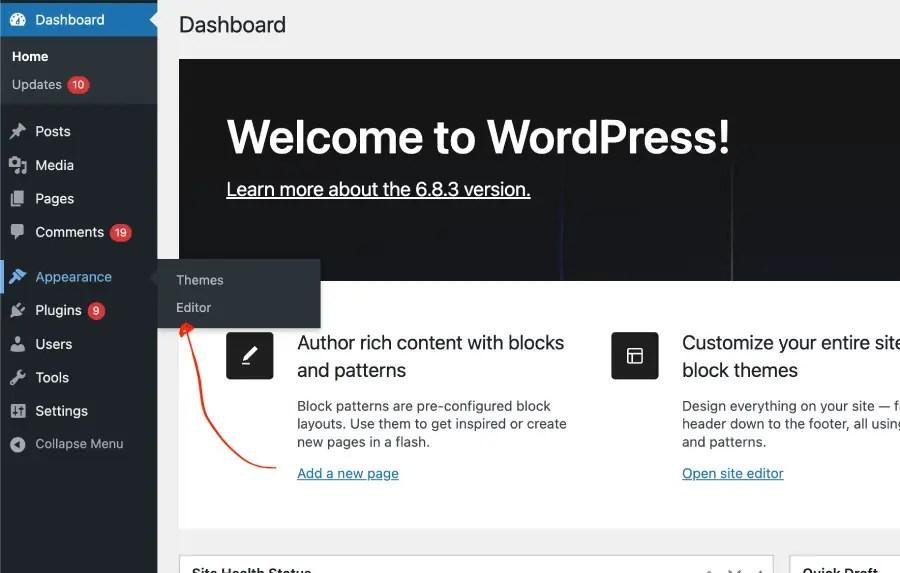
From the left sidebar, navigate to:
Appearance → Editor
If this option appears, your active theme supports the Site Editor.
If you cannot find it, your theme may use a different footer editing method.
Step 2: Find the Footer Template Part
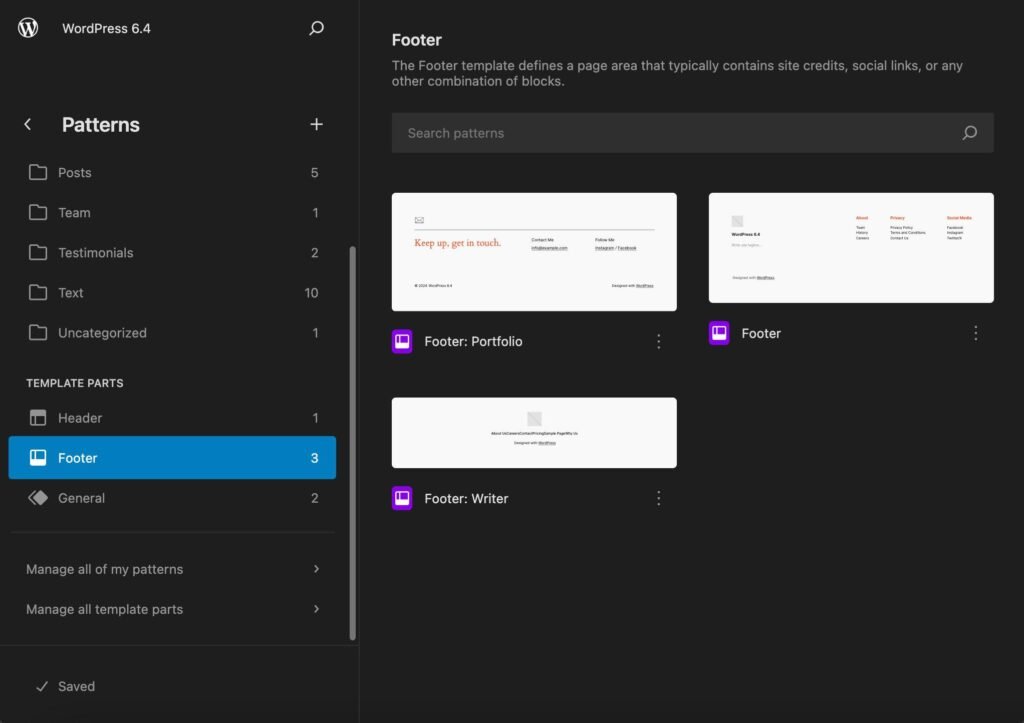
Inside the Site Editor, select Patterns.
Look for the section containing template parts, then find Footer.
Click the existing footer to open its editing interface.
In some WordPress layouts, you can also select the footer from the site preview using List View.
Step 3: Customize Your Footer Content
Select the text, image, navigation, or other block you want to edit.
You can:
- Replace the default copyright message.
- Add your website or company name.
- Insert social media icons.
- Create additional navigation links.
- Adjust spacing, colors, and typography.
Use the block inserter (+) to add new content.
Read more: how to start a blog
Step 4: Save and Preview Your Changes
After customizing your footer, click Save.
Confirm the changes and open your website in another browser tab.
Check several pages to make sure your updated footer displays correctly.
Because footer template parts can be shared across multiple page templates, changes to a shared footer generally appear wherever that template part is used.
How to Edit WordPress Footer Using Widgets
If you’re using a classic WordPress theme, the footer may be controlled through widget areas.
Widgets are useful for displaying contact details, navigation menus, and other information without editing theme files.
Step 1: Access Footer Widgets
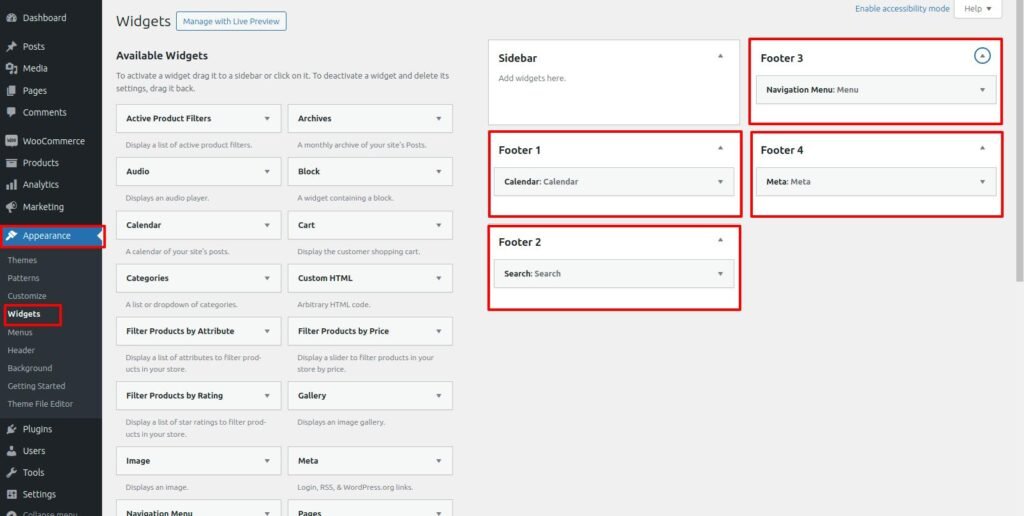
Navigate to:
Appearance → Widgets
Find a widget area named Footer, Footer Column, Footer Sidebar, or something similar.
The available areas depend on your theme.
Step 2: Add or Edit Footer Content
Select an existing widget or add a new block to the footer widget area.
For example, a Paragraph block can display business information, while a Navigation block may help visitors access important pages.
Some themes provide several footer columns, allowing you to organize content into separate sections.
Step 3: Save Your Changes
Save or update your widget settings.
Visit your website and check the footer.
If the changes don’t appear immediately, clear your website cache and refresh the page.
Important: Block themes generally use the Site Editor instead of traditional footer widget areas.
How to Change Footer Copyright Text in WordPress
One of the most common WordPress footer customization tasks is changing the copyright text.
You may want to replace a theme’s default message with your own branding.
For example:
© 2026 Your Website Name. All Rights Reserved.
Method 1: Use the Site Editor
Open Appearance → Editor, locate your Footer template part, and select the copyright text.
Replace it with your preferred wording and save your changes.
Method 2: Check Theme Customizer Settings
Some classic themes provide copyright settings under:
Appearance → Customize
Look for sections such as Footer, Footer Bar, Layout, or Copyright.
Not every theme includes these options, so check your theme’s documentation if they are missing.
Avoid editing the theme’s PHP files simply to change a copyright message unless there is no supported alternative.
How to Customize WordPress Footer With Elementor
If your website uses Elementor, you may have additional footer editing options.
Elementor’s Theme Builder functionality can be used to create and manage footer templates when the required features are available in your installation.
Steps to Edit an Elementor Footer
- Open the WordPress dashboard.
- Find Elementor’s Theme Builder.
- Locate the existing footer template.
- Select the template and open it with Elementor.
- Edit the text, icons, images, or layout.
- Update the template and check its display conditions.
You can create a footer with multiple columns, social media buttons, contact information, and important links.
Note: Elementor’s Theme Builder capabilities depend on your Elementor version, license, and any additional plugins you have installed.
If your footer was created using your theme instead of Elementor, you must edit it through the theme’s own controls.
Should You Use a WordPress Footer Editor Plugin?
A WordPress footer plugin can help when your theme lacks the customization options you need.
However, installing a plugin isn’t always necessary.
Before adding another plugin, check whether your existing WordPress editor can handle the required changes.
Consider a footer plugin if you need:
- Additional layout or design controls
- Custom footer content management
- Features not supported by your theme
- More flexible footer visibility options
Choose a plugin that is actively maintained, compatible with your WordPress installation, and suitable for your theme.
Avoid installing multiple plugins that control the same footer area, as conflicting settings can create confusing results.
Best Practices for Designing a Professional WordPress Footer
A useful footer should be attractive, organized, and easy to navigate.
Keep Your Footer Simple
Avoid filling the footer with unnecessary links, oversized graphics, or long paragraphs.
Focus on information that visitors actually need.
Add Important Navigation Links
Consider including links to your About Us, Contact, Privacy Policy, and relevant service pages.
These links can improve website navigation and help visitors discover useful content.
Make the Footer Mobile-Friendly
Check your footer on smaller screens.
Footer columns should adapt naturally to mobile devices, and links should remain easy to tap.
Use Consistent Branding
Match footer colors, typography, and spacing with the rest of your website.
This makes the design feel more consistent.
Improve Accessibility
Use readable font sizes, sufficient text contrast, descriptive link labels, and accessible navigation.
Avoid placing essential information inside images when regular text would work better.
Common WordPress Footer Editing Problems and Solutions
Even after following the correct steps, you might face a few issues.
Footer Editor Option Is Missing
If Appearance → Editor isn’t available, your theme may not support the Site Editor.
Try Appearance → Widgets or Appearance → Customize, or consult your theme documentation.
Footer Changes Are Not Showing
If your edits aren’t visible, check that you saved the correct footer template.
Then clear any WordPress caching plugin, server cache, or content delivery network cache.
Also verify that the page uses the template containing the footer you edited.
Footer Layout Looks Broken on Mobile
A footer that looks good on desktop may appear crowded on mobile.
Reduce unnecessary columns, adjust spacing, and test the responsive layout using your editor’s preview options.
Footer Appears Twice
Duplicate footers can occur when both a page builder and your WordPress theme output their own footer sections.
Check which system controls the footer and disable the unwanted version through supported template or theme settings.
Footer Cannot Be Edited
Some third-party themes use custom footer builders or code-based templates.
Consult the theme documentation before modifying theme files. Back up your site before making advanced changes.
Does WordPress Footer Customization Help SEO?
A properly structured footer can support your website’s overall usability and internal navigation.
Relevant footer links help visitors reach important pages and can make those pages easier for search engines to discover.
However, footer customization alone won’t guarantee higher Google rankings.
Avoid adding dozens of repetitive, keyword-rich links to every page. Instead, include a small number of genuinely useful links.
For better results, combine good footer navigation with helpful content, descriptive page titles, responsive design, and appropriate internal linking.
Final Thoughts
Editing your WordPress footer doesn’t have to be complicated. Whether you’re using a block theme, a classic theme, or Elementor, there is usually a straightforward way to update the bottom section of your website.
Start with your theme’s built-in editor before installing additional tools. Focus on clear navigation, useful information, responsive design, and consistent branding.
With the right footer editor in WordPress, you can create a footer that looks professional and makes your website easier to use.
Frequently Asked Questions
1. How do I edit the footer in WordPress without coding?
Open Appearance → Editor if you’re using a block theme, then select the Footer template part. With classic themes, check Appearance → Widgets or the Customizer. Most basic footer edits don’t require coding.
2. What is the best footer editor for WordPress?
For block themes, the built-in WordPress Site Editor is an excellent starting point because it supports visual customization without requiring an extra plugin.
3. How do I remove the default footer text in WordPress?
Locate the footer text through your theme’s supported editing interface, replace it with your own wording, and save. Some managed platforms or themes may impose restrictions on changing credits.
4. Can I edit my WordPress footer with Elementor?
Yes, if your footer is built with Elementor and your installation provides the necessary template editing features. Theme-controlled footers generally require a different editing method.
5. Why is my WordPress footer not updating?
Common causes include unsaved changes, website caching, editing the wrong footer template, or conflicting theme and page-builder settings. Check these before making additional changes.